











Author: Anne Sinclair
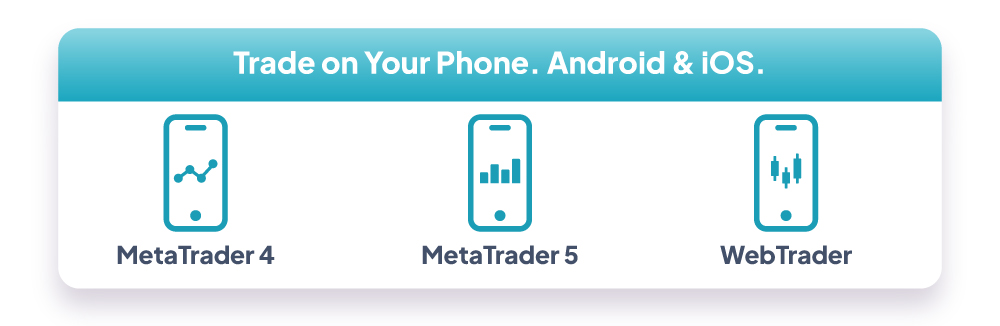
MT4, MT5 and the Lirunex App all run on Android and iOS, and all three connect to the same Lirunex trading account. This guide explains what each app offers on a phone or tablet, how setup works, and which one suits the way you trade.
This educational guide covers MT4 and MT5 mobile setup one device at a time. Each section tells you which app to install, how to log in, what you can do once you are in, and where to find the full step by step PDF guide. If you have not chosen a platform yet, compare MT4, MT5 and WebTrader platforms first.
Before You Start
Have your Lirunex login details ready. You will need:
• Your Lirunex trading account number and trading password.
• The name of the Lirunex server your account is on.
Download MetaTrader only from the official Google Play Store or Apple App Store.
MT4 Mobile Setup
MetaTrader 4 is one of the most widely used retail forex platforms, and its mobile app keeps the familiar desktop layout. If you already trade MT4 on PC, you will feel at home straight away.
MT4 on Android
Install MetaTrader 4 from the Google Play Store. Log in with the Lirunex server and your trading account details. Once you are in, you can watch prices on your watchlist, place trades and manage open positions, much like on desktop.

Step by step guide: MT4 Android Setup Guide (PDF)
MT4 on iOS (iPhone and iPad)
Download MetaTrader 4 from the App Store and log in with the Lirunex server and your trading account details. You then have your watchlist, order entry and trade history on your iPhone or iPad.

Step by step guide: MT4 iOS Setup Guide (PDF)
What MT4 Mobile Includes
Charts and Analysis Tools
On both Android and iOS, MT4 mobile offers interactive charts, the full set of MT4 trading orders and the most popular analysis tools, very close to the desktop version.
Indicators and Timeframes
That includes 30 technical indicators, 24 analytical objects and 9 timeframes from one minute to one month.
Managing Open Positions
You can also adjust Stop Loss and Take Profit on open positions.
Sources: MetaQuotes: MetaTrader 4 Mobile Trading Features | MetaQuotes: MetaTrader 4 for Android Overview
MT5 Mobile Setup
MetaTrader 5 is the newer MetaTrader platform. Installation and login work the same way as MT4, so the choice mainly comes down to which platform you use on desktop.
MT5 on Android
Download MetaTrader 5 from the Google Play Store and log in with your Lirunex trading account details. You get MT5’s wider set of order types and analysis tools, which makes it a natural fit if you already use MT5 on PC.

Step by step guide: MT5 Android Setup Guide (PDF)
MT5 on iOS (iPhone and iPad)
The iOS app mirrors the Android version. Install MetaTrader 5 from the App Store and log in with your Lirunex trading account details. From there you can monitor your account, review trade history and place trades on your iPhone or iPad.

Step by step guide: MT5 iOS Setup Guide (PDF)
What MT5 Mobile Adds
Position Accounting and Order Types
MT5 mobile supports both netting and hedging position accounting, Market Depth and all MT5 order types, including pending orders with Stop Loss and Take Profit.
One Click Trading
One Click Trading lets you send orders directly from the chart or the Market Depth window.
Sources: MetaQuotes: MetaTrader 5 Mobile Trading for iPhone, iPad and Android
The Lirunex App
The Lirunex App is a separate native app built around your Lirunex account rather than the MetaTrader interface. Download it from your device’s app store on Android or iOS. It is the lighter option if you mainly want to manage your account, check open positions and place straightforward trades on the go. The PDF guide below covers installation and login in full.

Step by step guide: Lirunex App Setup Guide (PDF)
Which Mobile Trading App Should You Use?
MT4 and MT5 mobile mirror their desktop versions, so the simplest rule is to use the same platform on your phone that you use on PC. The Lirunex App suits quick checks and simple orders.

Managing Risk When You Trade on Mobile
Protect Your Account
Lock your phone with a passcode or biometrics, never share your trading password, and log out of the app on any shared device.
Set Stop Loss and Take Profit
A smaller screen makes it easier to tap the wrong volume or direction, so check every order ticket before you confirm. Both MT4 and MT5 mobile let you set Stop Loss and Take Profit levels on your trades. Our risk management guide explains how to size positions for your account.
Check the Economic Calendar
High impact releases such as central bank decisions and jobs data can move forex, gold and indices quickly, and spreads may widen around them. Check the Lirunex economic calendar before you trade, and follow our weekly market analysis for the events ahead.
Frequently Asked Questions
Do I need a different login for mobile?
No. Your existing Lirunex trading account number and password work on desktop, web and mobile.
Can I use MT4 on Android and iOS?
Yes. MT4 is available from the Google Play Store for Android and the App Store for iPhone and iPad, and you log in the same way on both.
Can I use MT5 on Android and iOS?
Yes. MT5 is available on Android and iOS, and the iOS app mirrors the Android version.
Can I use MT4 and MT5 on the same phone?
Yes. Both apps can be installed at the same time, and each logs in independently with its own account details.
Which mobile app should I use?
Use the platform you already trade on PC. If you mainly want to check positions and place straightforward trades, the Lirunex App is generally the simplest option.
Sources & References
Sources: MetaQuotes: MetaTrader 4 Mobile Trading Features | MetaQuotes: MetaTrader 4 for Android Overview | MetaQuotes: MetaTrader 5 Mobile Trading for iPhone, iPad and Android
How to Get Started with Mobile Trading
Install MT4, MT5 or the Lirunex App from your device’s app store and log in with your existing account details. To get used to the app first, you can practise within a simulated environment via a demo account. Demo results do not reflect live market conditions such as slippage, and live trading still carries risk. For more beginner guides, visit Lirunex Trading Education. Questions about logging in? Contact our support team.
[ Log in ] [ Open an Account ] [ Contact support ]
Risk Disclaimer: Trading forex and CFDs carries a high level of risk and may not be suitable for all investors. You could lose more than your initial deposit. Past performance is not indicative of future results. This content is for educational purposes only and is not investment advice. Lirunex is regulated by the Labuan Financial Services Authority (Licence No. MB/20/0050) and the Financial Services Commission of Mauritius (Licence No. GB24203882).