











Author: Anne Sinclair
Lirunex Client Portal Guide | Verify, Deposit, and Start Trading
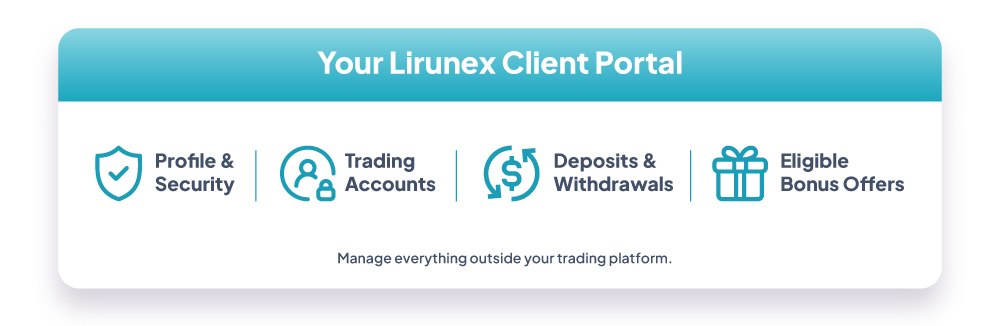
What Is the Lirunex Client Portal?
The Lirunex Client Portal is the account management hub alongside your trading platform, whether WebTrader, MT4, or MT5. It handles everything outside placing a trade: updating personal details, adding a payment method, funding your account, opening or archiving accounts, and claiming bonuses. Think of it as the control panel for your account, while WebTrader, MT4, and MT5 remain where you actually trade.
Why It Matters
Getting comfortable with the Lirunex Client Portal matters because it ties your entire account together in one place: profile changes, funding, account management, and promotions all live in one consistent interface, separate from WebTrader, MT4, or MT5, which stay purely for trading. A few minutes learning where each setting lives now saves time later, especially under time pressure.
Managing Your Profile and Security
What You Can Do in the Lirunex Client Portal
Your profile covers your personal details, password, linked payment accounts, and security features like two-factor authentication (2FA). Keeping it current, and enabling 2FA, is one of the simplest ways to keep your account secure.

Step-by-Step
Step 1: Review Your Personal Details
Open the Profile section of your Client Portal and review your personal details. Update anything that has changed, such as your contact information, so your account records stay accurate.
Step 2: Add or Review Payment Accounts
From the same section, add or review the payment accounts linked to your Lirunex account. These are the accounts you will use later when depositing or withdrawing funds through Finance.
Step 3: Change Your Password
Change your password from the Security tab whenever needed. Choose a password you do not reuse elsewhere, and update it periodically as good account hygiene.
Step 4: Turn On Two-Factor Authentication
Turn on two-factor authentication in the Security tab. Once enabled, you will need a second verification step in addition to your password when logging in, which meaningfully reduces the risk of unauthorized access even if your password is ever compromised.
Full step-by-step guide: Read the full Profile guide (PDF)
Managing Your Trading Accounts
What You Can Do
From the Accounts section, you can open new live or demo trading accounts, review trade records, rename accounts, update trading passwords, and archive accounts you no longer use, all organised by account type.

Step-by-Step
Step 1: Open a Live or Demo Account
From Accounts, open a new live account if you are ready to trade with real funds, or a demo account if you want to practice first. Both account types are managed from the same section. If you are not sure which to start with, our guide to how demo accounts work explains the difference before you commit real funds.
Step 2: Review Your Trade Records
Check trade history and records for any account directly from this section, without opening the trading platform itself.
Step 3: Rename or Update an Account
Rename an account to track what it is for, or update its trading password, all from the same Accounts area.
Step 4: Archive Accounts You No Longer Use
Archive accounts you no longer trade on to keep your account list organised, rather than mixing them in with the ones you use regularly.
Full step-by-step guide: Read the full Trading Accounts guide (PDF)
Managing Deposits, Withdrawals, and Transfers
What You Can Do
The Finance section covers funding your account and moving money around: adding a payout method, depositing via crypto or card, withdrawing funds, transferring between your own accounts, and reviewing your transaction history.

Step-by-Step
Step 1: Add a Payout Method
Before you can deposit or withdraw, add a payout method under Finance, linked to the payment accounts you set up in your Profile.
Step 2: Deposit or Withdraw Funds
Choose from the available crypto or card-based deposit options to fund your account, or submit a withdrawal request to take funds out.
Step 3: Transfer Between Your Accounts
If you hold more than one trading account, transfer funds between them directly from Finance, without withdrawing and redepositing.
Step 4: Review Your Transaction History
Check your transaction history any time to review past deposits, withdrawals, and transfers.
Full step-by-step guide: Read the full Finance guide (PDF)
Claiming a Bonus
What You Can Do

The Bonus Portal lists active promotions, claimed against an eligible trading account. Terms can vary by account type, so review a promotion's details before claiming it.
Step-by-Step
Step 1: View Active Promotions
Open the Bonus Portal to see which promotions are currently active.
Step 2: Read the Terms
Read the terms carefully, since eligibility and conditions can differ from one offer to the next.
Step 3: Confirm Eligibility
Confirm which trading account is eligible for the promotion, since not every account type may qualify.
Step 4: Claim the Promotion
Once eligibility is confirmed, claim the promotion against that account from the Bonus Portal.
Full step-by-step guide: Read the full Bonus Portal guide (PDF)
Putting It Together: Your First Session
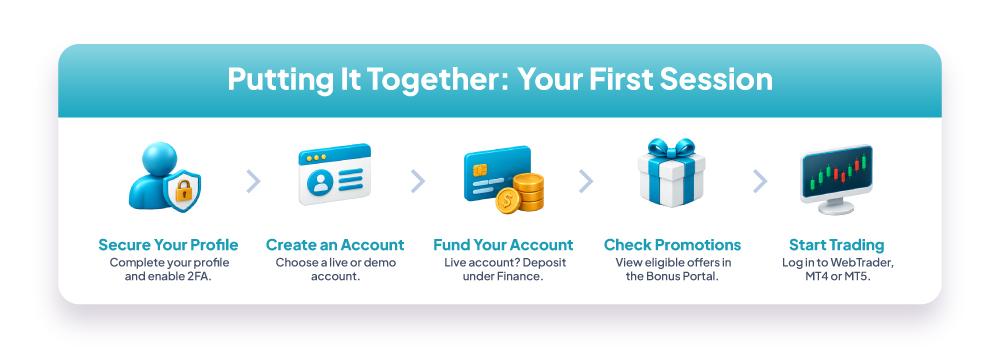
Step-by-Step: Your First Lirunex Client Portal Session
Step 1: Secure Your Profile
Secure your profile and enable two-factor authentication.
Step 2: Create a Trading Account
Create a live or demo trading account, depending how you want to trade.
Step 3: Fund Your Account
If funding a live account, add a deposit under Finance.
Step 4: Check for Promotions
Check the Bonus Portal for any promotions you may be eligible for.
Step 5: Start Trading
Once your profile, account, and funding are sorted, log in to WebTrader, MT4, or MT5 to place your first trade. If you are still deciding which platform fits how you trade, our WebTrader vs. MT4 vs. MT5 comparison can help.
Important Considerations
A few things matter as you set up your Lirunex Client Portal account. Two-factor authentication, available in the Security tab, is one of the most effective protections against unauthorized access, so turn it on as soon as you set up your profile. Bonus and promotion terms vary by account type and can change over time, so check the current terms in the Bonus Portal rather than assuming an older offer still applies. Funding your account, whether by deposit or bonus, does not reduce the market risk of trading itself: your capital stays fully at risk once you trade. If you are unsure about a fee, funding method, or setting, the step-by-step PDF guides above, or Lirunex support, can confirm the exact current details.
Frequently Asked Questions
Where do I manage my deposits and withdrawals?
All funding activity is handled through the Finance section of the Lirunex Client Portal.
Can I have more than one trading account?
Yes, you can create multiple live and demo accounts and manage each one separately under Accounts.
How do I know which bonuses I am eligible for?
Check the Bonus Portal, where active promotions are listed against the account types they apply to.
Do I need a live account, or can I trade on a demo account first?
You can open a demo account from the same Accounts section as live accounts, so real funds are not required to start.
Do I need to add a payment method before I can deposit?
Yes. Add a payout method under Finance first; deposits and withdrawals run through the payment accounts linked to your profile.
Can I move funds between my own trading accounts?
Yes, transfers between your own trading accounts are available directly from the Finance section.
Do bonus offers apply to every account type?
Not necessarily. Terms vary by account type, so check a promotion's details before claiming it.
What is two-factor authentication, and why should I turn it on?
It adds a second verification step beyond your password at login, protecting your account even if your password is compromised. It's available from the Security tab in your profile.
Where do I find the full step-by-step guide for a specific section?
Each section links to its own step-by-step PDF guide, covering Profile, Trading Accounts, Finance, and Bonus Portal, with the exact clicks for that part of the Client Portal.
Ready to Set Up Your Lirunex Account?
Complete your profile, add a payment method, and create your first trading account from the Lirunex Client Portal. Practice with a free demo account, or open a live account when ready.
[ Open Free Demo Account ] [ Open Live Account ]
Also exploring other ways to trade? Our guide to copy trading covers how following or publishing a strategy works alongside your own trading account.
Risk Disclaimer: Forex and CFD trading involves significant risk of loss and may not be suitable for all investors. Past performance is not indicative of future results. Please ensure you fully understand the risks involved before trading. Demo results may differ from live trading conditions.