














By Anne Sinclair | Financial Markets Content & Communications Strategist
Lirunex Client Portal Guide: Verify, Deposit, and Start Trading
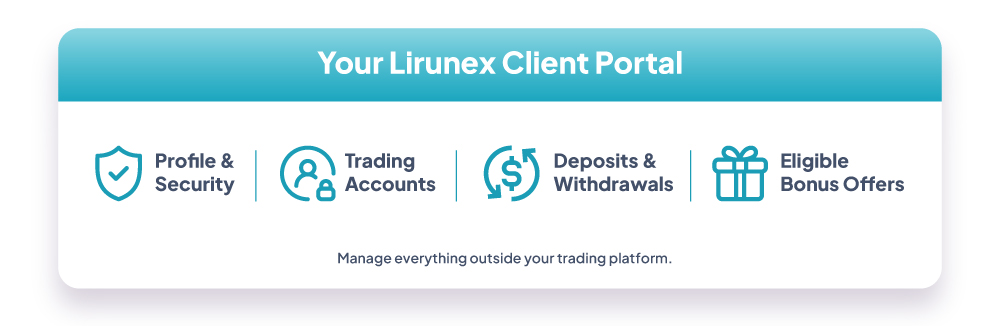
The Lirunex Client Portal is where you manage everything outside the trading platform. That includes your profile and security, trading accounts, deposits and withdrawals, and bonus offers. This guide walks through each area of the Lirunex Client Portal in order. Then it pulls everything together into a first session walkthrough. Each section also links to a full step-by-step PDF guide for the exact clicks. If you are new to the markets, What Is Forex Trading and How Does It Work? explains the basics first.
What Is the Lirunex Client Portal?
The Lirunex Client Portal is the account management hub alongside your trading platform, whether WebTrader, MT4, or MT5. It handles everything outside placing a trade. For example, you can update personal details, add a payment method, and fund your account. You can also open or archive trading accounts and claim bonuses. Think of the Lirunex Client Portal as the control panel for your account. Meanwhile, WebTrader, MT4, and MT5 remain where you actually trade.
Why the Lirunex Client Portal Matters
Getting comfortable with the Lirunex Client Portal matters because it ties your entire account together in one place. Profile changes, funding, account management, and promotions all live in one consistent interface. This interface is separate from WebTrader, MT4, or MT5, which stay purely for trading. As a result, a few minutes learning where each setting lives now saves time later, especially under time pressure.
Managing Your Profile and Security in the Lirunex Client Portal
What You Can Do in the Profile Section
Your profile covers your personal details, password, linked payment accounts, and security features like two-factor authentication (2FA). Overall, keeping your profile current, and enabling 2FA, is one of the simplest ways to keep your account secure. The Profile section is also organised into Personal Information, Payment Accounts, and Security Setting tabs.

Step-by-Step: Set Up Your Lirunex Client Portal Profile
Step 1: Review Your Personal Details
Open the Profile section of your Client Portal and review your personal details. Update anything that has changed, such as your contact information, so your account records stay accurate.
Step 2: Add or Review Payment Accounts
Next, from the same section, add or review the payment accounts linked to your Lirunex account. These are the accounts you will use later, because deposits and withdrawals run through the Finance section.
Step 3: Change Your Password
Change your password from the Security tab whenever needed. Choose a password you do not reuse elsewhere. Then update it periodically as good account hygiene.
Step 4: Turn On Two-Factor Authentication
Turn on two-factor authentication in the Security tab. Once enabled, you will need a second verification step in addition to your password when logging in. As a result, this can reduce the risk of unauthorised access, even if your password is ever compromised.
Full step-by-step guide (PDF): Read the full Profile guide (PDF)
Managing Your Trading Accounts in the Lirunex Client Portal
What You Can Do in the Accounts Section
From the Accounts section, you can open new live or demo trading accounts and review trade records. You can also rename accounts, update trading passwords, and archive accounts you no longer use. Everything is organised by account type. Several trading accounts can sit under one profile, and each one stays separate. The Lirunex account types page compares the available account types.

Step-by-Step: Manage Trading Accounts in the Lirunex Client Portal
Step 1: Open a Live or Demo Account
From Accounts, open a new live account if you are ready to trade with real funds. Alternatively, open a demo account if you want to practise first. Both account types are also managed from the same section. If you are not sure which to start with, our guide to how demo accounts work explains the difference first.
Step 2: Review Your Trade Records
Check trade history and records for any account directly from this section, instead of opening the trading platform.
Step 3: Rename or Update an Account
Rename an account to track what it is for. You can also update its trading password from the same Accounts area.
Step 4: Archive Accounts You No Longer Use
Archive accounts you no longer trade on to keep your account list organised. This also avoids mixing them in with the ones you use regularly.
Full step-by-step guide (PDF): Read the full Trading Accounts guide (PDF)
Managing Deposits, Withdrawals, and Transfers in the Lirunex Client Portal
What You Can Do in the Finance Section
The Finance section covers funding your account and moving money around. You can add a payout method, deposit via crypto or card, and withdraw funds. You can also transfer between your own accounts and review your transaction history. Everything to do with money runs through Finance. The deposit and withdrawal page lists the payment methods with their minimums, currencies, timing and fees.

Step-by-Step: Fund Your Account in the Lirunex Client Portal
Step 1: Add a Payout Method
Before you can deposit or withdraw, add a payout method under Finance. Then link it to the payment accounts you set up in your Profile.
Step 2: Deposit or Withdraw Funds
Choose from the available crypto or card-based deposit options to fund your account. Then, if you want to take funds out, submit a withdrawal request.
Step 3: Transfer Between Your Accounts
If you hold more than one trading account, transfer funds between them directly from Finance. This also saves you from withdrawing and redepositing.
Step 4: Review Your Transaction History
Finally, check your transaction history any time to review past deposits, withdrawals, and transfers.
Full step-by-step guide (PDF): Read the full Finance guide (PDF)
Claiming a Bonus in the Lirunex Client Portal
What You Can Do in the Bonus Portal
The Bonus Portal lists active promotions, claimed against an eligible trading account. Terms can vary by account type, so review a promotion's details before claiming it. The Bonus Portal also sits inside the Lirunex Client Portal, next to your accounts and Finance.

Step-by-Step: Claim a Promotion in the Lirunex Client Portal
Step 1: View Active Promotions
First, open the Bonus Portal to see which promotions are currently active.
Step 2: Read the Terms
Read the terms carefully, since eligibility and conditions can differ from one offer to the next.
Step 3: Confirm Eligibility
Confirm which trading account is eligible for the promotion, since not every account type may qualify.
Step 4: Claim the Promotion
Once eligibility is confirmed, claim the promotion against that account from the Bonus Portal.
Full step-by-step guide (PDF): Read the full Bonus Portal guide (PDF)
Putting It Together: Your First Lirunex Client Portal Session
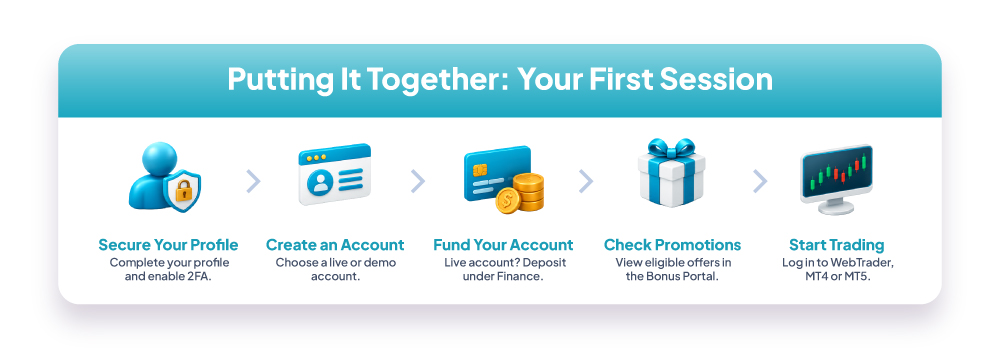
Here is how the sections above fit into one first session in the Lirunex Client Portal. The steps run from securing your profile to your first trade.
Step-by-Step: Your First Lirunex Client Portal Session
Step 1: Secure Your Profile
First, secure your profile and enable two-factor authentication.
Step 2: Create a Trading Account
Next, create a live or demo trading account, depending on how you want to trade.
Step 3: Fund Your Account
After that, if you are funding a live account, add a deposit under Finance.
Step 4: Check for Promotions
Then check the Bonus Portal for any promotions you may be eligible for.
Step 5: Start Trading
Once your profile, account, and funding are sorted, log in to WebTrader, MT4, or MT5 to place your first trade. If you are still deciding which platform fits how you trade, our MT4 vs MT5 vs WebTrader comparison can help. To trade from a phone instead, see the MT4 and MT5 mobile setup guide. It refers to the account details sent from the Lirunex Client Portal.
Other Features Linked to the Lirunex Client Portal
Beyond everyday account management, strategies you can follow or manage are found through the Leaderboard in your Client Portal. Our copy trading guide covers how following or publishing a strategy works. In addition, our PAMM and MAM accounts guide covers professionally managed arrangements. Each of these works alongside your own trading account.
Important Considerations When Using the Lirunex Client Portal
A few things matter as you set up your Lirunex Client Portal account. Two-factor authentication, available in the Security tab, is one of the most effective protections against unauthorised access. Because of this, turn it on as soon as you set up your profile. Bonus and promotion terms vary by account type and can change over time. Therefore, check the current terms in the Bonus Portal rather than assuming an older offer still applies. Funding your account, whether by deposit or bonus, does not reduce the market risk of trading itself. Your capital stays fully at risk once you trade. If you are unsure about a fee, funding method, or setting, check the step-by-step PDF guides above. Lirunex support can also confirm the exact current details. Before you log in, use the Fraud Awareness page to check that a site is an official Lirunex site.
Lirunex Client Portal FAQ
Where do I manage deposits and withdrawals in the Lirunex Client Portal?
All funding activity is handled through the Finance section of the portal.
Can I have more than one trading account in the Lirunex Client Portal?
Yes, you can create multiple live and demo accounts and manage each one separately under Accounts.
How do I know which bonuses I am eligible for?
Check the Bonus Portal, where active promotions are listed against the account types they apply to. Terms vary by account type, so check a promotion's details before claiming it.
Do I need a live account, or can I trade on a demo account first?
You can open a demo account from the same Accounts section as live accounts. So real funds are not required to start.
Do I need to add a payment method before I can deposit?
Yes. Add a payout method under Finance first; deposits and withdrawals run through the payment accounts linked to your profile.
Can I move funds between my own accounts in the Lirunex Client Portal?
Yes, transfers between your own trading accounts are available directly from the Finance section.
What is two-factor authentication, and why should I turn it on?
It adds a second verification step beyond your password at login, protecting your account even if your password is compromised. It is also available from the Security tab in your profile.
Where do I find the full step-by-step guide for a specific section of the Lirunex Client Portal?
Each section links to its own step-by-step PDF guide. The guides cover Profile, Trading Accounts, Finance, and Bonus Portal, with the exact clicks for that part of the portal.
Ready to Set Up Your Lirunex Account?
Complete your profile, add a payment method, and create your first trading account from the Lirunex Client Portal. Practise with a free demo account, or open a live account when ready.
Open Free Demo Account | Open Live Account
Also exploring other ways to trade? Our guide to copy trading covers how following or publishing a strategy works alongside your own trading account.
Risk Disclaimer: Forex and CFD trading involves significant risk of loss and may not be suitable for all investors. Past performance is not indicative of future results. Please ensure you fully understand the risks involved before trading. Demo results may differ from live trading conditions.