














By Anne Sinclair | Financial Markets Content & Communications Strategist
MT4 vs MT5 vs WebTrader: Which Lirunex Platform Should You Trade On?
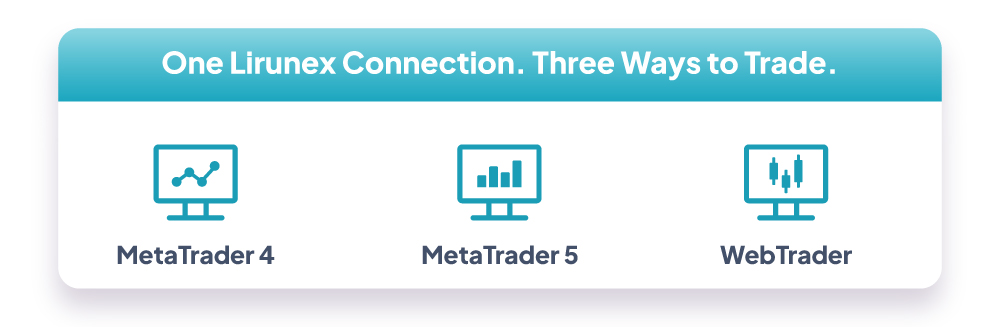
MT4 vs MT5 vs WebTrader is the choice many Lirunex clients face on a computer or in a browser. The options are MetaTrader 4, MetaTrader 5, or Lirunex WebTrader. All three connect to the same Lirunex pricing and execution. The right choice comes down to how you like to work. This platform comparison gives a general look at each. Setup guides cover every detail. If you trade from a phone instead, see our mobile setup guide for MT4 and MT5.
MT4 vs MT5 vs WebTrader at a Glance
Before the detail, here is the short version of MT4 vs MT5 vs WebTrader. Each trading platform suits a different way of working, and you do not need a separate account for each one.
- Lirunex WebTrader: runs in your browser, with nothing to install or update.
- MetaTrader 4: a desktop application with a familiar layout and a large library of Expert Advisors and custom indicators.
- MetaTrader 5: a desktop application with more order types, more timeframes and additional built-in analysis tools.
Your choice of trading platform is about workflow and personal preference. It does not change the markets you can access. Nor does it make any trade more or less likely to succeed.
MT4 vs MT5 vs WebTrader: The Three Platforms in Detail
Every option below uses the same Lirunex account. You can try more than one and keep the one that fits how you trade. Not sure which account to open? The Lirunex account types page compares the options.
WebTrader: Trade From Any Browser, No Download
Lirunex WebTrader runs entirely in your browser, so there is nothing to install and nothing to update. Log in with your usual Lirunex account details and you are straight into a full trading interface. You get order placement, an overview of open positions and balance, watchlists, and built-in news and chart based ideas. WebTrader is convenient on a shared or work computer. It also suits anyone who does not want another application running in the background.
After you sign in with your Username and Password, you click WebTrader at the top right to open it. If you hold more than one trading account, use the Trading Account Selection screen to view and switch between them. To place an order, find the symbol and choose Buy or Sell. Then set the order type, lot size, fill policy, Stop Loss and Take Profit, and confirm. The platform also has Markets, Assets, Signals and News sections, and you can add symbols to your favourites.
There is one trade-off to know before you choose WebTrader as your only trading platform. It does not support Expert Advisors or custom indicators. If you rely on automated strategies, you will still want MT4 or MT5 installed alongside it.

Full step-by-step guide (PDF): WebTrader Guideline (PDF)
MetaTrader 4 (MT4) for PC: The Classic Choice
MT4 is the long standing standard in retail forex trading. Many traders stick with it for its familiar layout. Its huge library of Expert Advisors (EAs) and custom indicators has also grown over the years. It is a desktop application you install once from lirunex.online, then log in to with your trading account details. From there you get the full MetaTrader 4 toolkit: order placement, position management, and a detailed trade history. Because MT4 has been around the longest, it also has the largest third-party marketplace for EAs and indicators. This is why many long-time forex traders have not felt a need to move off it.
To install it, open lirunex.online and choose Trading, then MT4/MT5. Scroll to the MetaTrader 4 section, select MT4 for PC and click Download. Then run the installer. At login you select the trading server, choose Existing trade account and enter your Login and Password. To place an order, double-click a symbol in Market Watch. Set the volume and any Stop Loss and Take Profit. Then choose Buy by Market or Sell by Market. Open trades and your history sit in the Trade and Account History tabs. The Fraud Awareness page lists official platform download links. Use it to check that a site is an official Lirunex site.

Full step-by-step guide (PDF): MetaTrader 4 (PC) Guideline (PDF)
MetaTrader 5 (MT5) for PC: More Order Types, More Tools
MT5 is the newer engine from the same developer. It builds on MT4 with more order types, more timeframes, and additional built-in analysis tools. Installing and logging in work much the same way as on MT4. If you run automated strategies, MetaTrader 5 has its own EA ecosystem separate from MT4's. It suits traders who want a bit more depth without leaving the MetaTrader family. MT5 also supports both hedging and netting account modes. This gives more flexibility over how offsetting positions on one symbol are handled.
The download sits in the same Trading menu on lirunex.online, under the MetaTrader 5 section and MT5 for PC. At login, open the File menu and choose to log in to a trade account. Search for Lirunex Limited and connect with your existing account details and server. In Market Watch, double-click a symbol to open the order window. Choose Market Execution, Limit Order or Stop Order. Enter the volume, Stop Loss, Take Profit and fill policy, then choose Buy by Market or Sell by Market.

Full step-by-step guide (PDF): MetaTrader 5 (PC) Guideline (PDF)
MT4 vs MT5: Key Differences Within MetaTrader
If you have decided on a desktop trading platform, the remaining question is MetaTrader 4 or MetaTrader 5. These points usually decide it:
- Order types: MT5 offers a wider range, including extra pending order types, while MT4 covers the core market, limit and stop orders.
- Timeframes and analysis: MT5 provides more timeframes and more built-in analysis tools than MT4.
- Account mode: MT5 supports hedging and netting, while MT4 allows offsetting positions on the same symbol. Check with Lirunex support which mode applies to your account.
- Expert Advisors: MT4 and MT5 each have their own library. An EA written for one is generally not compatible with the other.
Automated trading is a separate decision from platform choice. Our guide to AI trading bots vs manual trading explains how automated and manual approaches differ. It also covers the risks of each.
What About Mobile?
MT4, MT5, and the Lirunex App are all also available on Android and iOS. You can manage the same account from your phone. Setup steps for every mobile combination are covered in a separate guide: How to Trade Forex on Your Phone: MT4 and MT5 Mobile Setup. The Lirunex App guide covers installing from Google Play. It then covers choosing the Live tab and logging in with your email or username and password. The Lirunex App page has the download links.
Quick Comparison: MT4 vs MT5 vs WebTrader
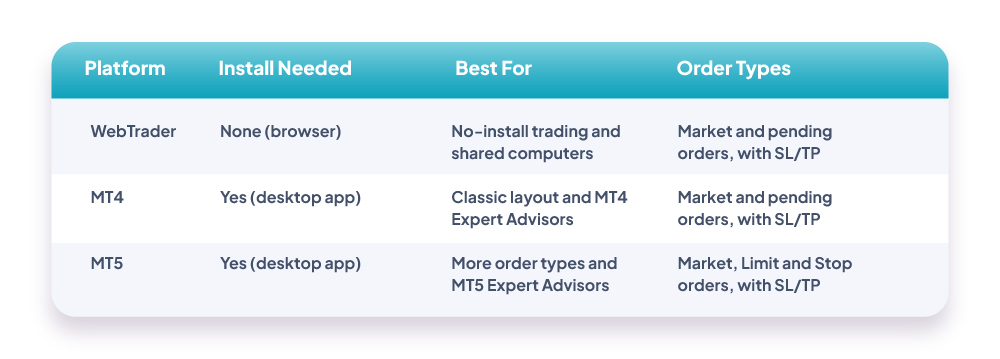
For a fast side-by-side view of this MT4 vs MT5 vs WebTrader comparison, use the table below. It covers install requirements, who each platform suits, and the order types supported. Use it to match the tool to how you trade before you read the full setup guides.
MT4 vs MT5 vs WebTrader: Who It Suits
There is no single answer to MT4 vs MT5 vs WebTrader, because each platform suits a different working style. These are general guides, not recommendations, and any platform comparison is only a starting point.
Lirunex WebTrader suits people who want convenience: nothing to install, access from a shared computer, and simple order placement. It is also a gentle starting point if you are new to using a trading platform.
MetaTrader 4 suits people who value familiarity and a long established toolset. It also has a large library of Expert Advisors and custom indicators.
MetaTrader 5 suits people who want more order types, more timeframes and extra analysis tools within the MetaTrader family.
Many clients use more than one trading platform. A common pattern is WebTrader for quick checks away from a main computer. MT4 or MT5 then handle deeper chart work.
Try the Platforms on a Demo Account First
The simplest way to settle MT4 vs MT5 vs WebTrader is to try them. A forex demo account lets you practise with virtual funds. You can test the layout and order tickets of each trading platform without risking real money. A platform comparison only goes so far, and hands-on practice shows what suits you. Demo results may differ from live trading conditions, so treat it as practice only. If you are new to the market itself, our guide What Is Forex Trading and How Does It Work? covers the basics before you choose a trading platform.
MT4 vs MT5 vs WebTrader: Frequently Asked Questions
MT4 vs MT5 vs WebTrader: Can I Use More Than One Platform With the Same Account?
Yes. Your Lirunex login works across WebTrader, MT4, and MT5, and you can switch between them at any time.
Do I Need to Download Anything to Use Lirunex WebTrader?
No. Lirunex WebTrader runs in your browser after you log in, with no installation required.
MT4 vs MT5 vs WebTrader: Which Platform Should a Beginner Start With?
WebTrader is the fastest way to get started with no setup. MT4 and MT5 add more charting and automation tools once you are comfortable with the basics. Whichever you pick, a demo account is a sensible place to learn.
MT4 vs MT5 vs WebTrader: Can I Switch From MT4 to MT5 Later?
Yes. Your Lirunex account is not locked to one platform. You can install MT5 or switch back to MT4 at any time using the same login. Your account balance and trading history stay with your account rather than the platform.
MT4 vs MT5 vs WebTrader: Do Expert Advisors Work on Every Platform?
No. WebTrader does not support Expert Advisors or custom indicators. MT4 and MT5 each have their own Expert Advisors, and one written for MT4 is generally not compatible with MT5.
Ready to Trade With Lirunex?
Log in to your Lirunex account to open Lirunex WebTrader. Or download MT4 or MT5 from lirunex.online to get started on desktop. Still weighing up MT4 vs MT5 vs WebTrader? Practise on a free demo account first. Reach out to support if you want a hand deciding which one fits how you trade.
Open Free Demo Account | Open Live Account
Risk Disclaimer: Forex and CFD trading involves significant risk of loss and may not be suitable for all investors. Past performance is not indicative of future results. Please ensure you fully understand the risks involved before trading. Demo results may differ from live trading conditions.